Windows terminal for shells and AI coding assistants
Belor
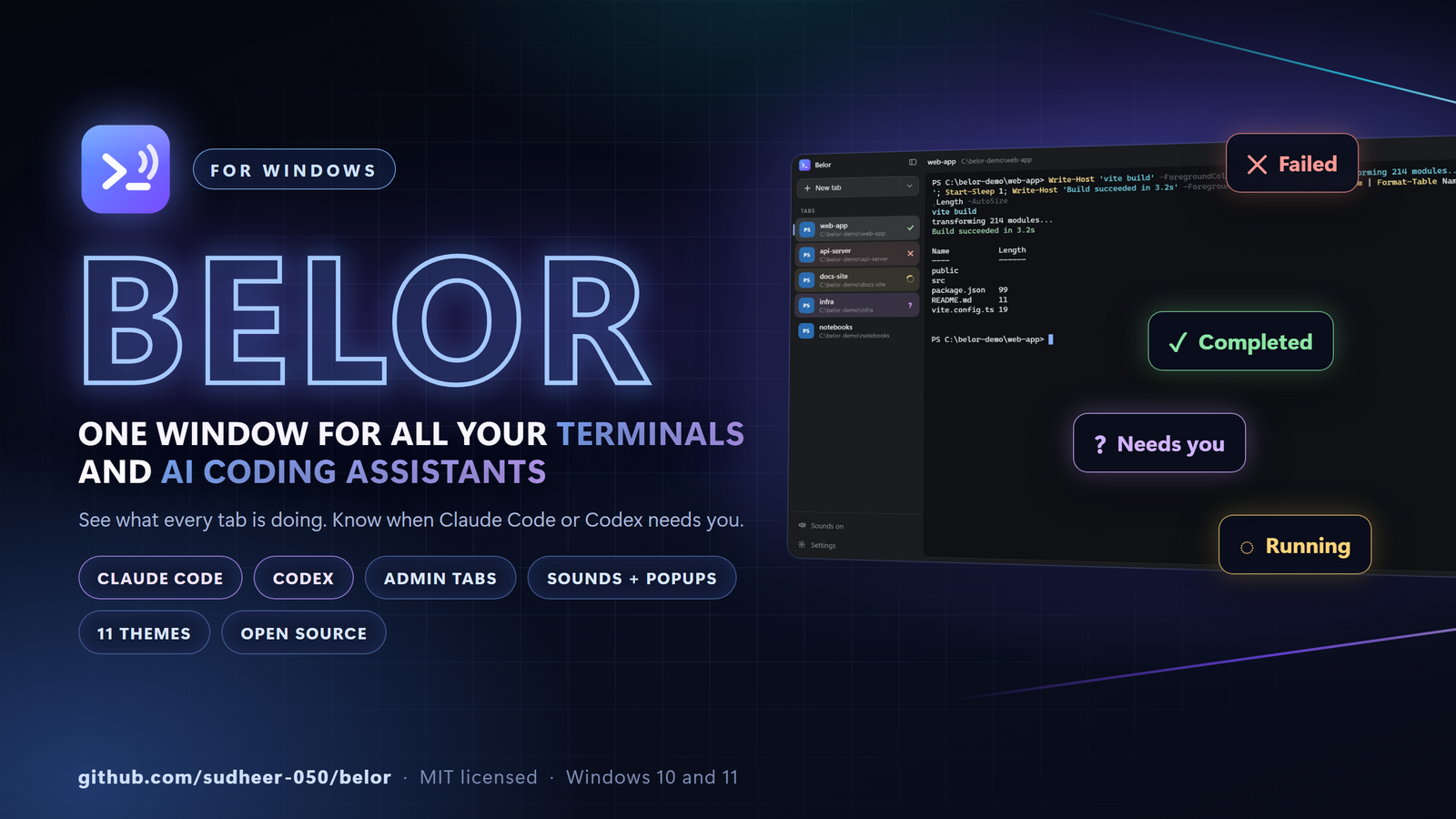
One window for all your terminals and AI coding assistants. Color-coded tabs show what is running, finished, failed or waiting, and Belor tells you the moment Claude Code or Codex needs you.
What it is for
Belor keeps PowerShell, Command Prompt, WSL and Git Bash in one window with a sidebar of tabs. Each tab is colored by what is happening in it, so with several builds, servers and AI coding sessions running you can see which one needs you without clicking through them. Runs of Claude Code and Codex show up in the sidebar like any other command, with sounds and desktop popups when something finishes, fails or asks a question.
With several builds, servers and AI coding sessions open, the slow part is finding out which one needs you. Belor puts every shell in one sidebar, colors each tab by what is happening in it, and alerts you by sound and popup when something finishes, fails or asks a question.
- Watching several builds
- Run each in its own tab and glance at the sidebar to see which finished or failed.
- AI coding sessions
- Run Claude Code or Codex in several tabs and be told when one finishes or needs permission.
- Admin work beside normal work
- Keep an elevated tab open next to your regular ones without a second window.
Get started
Install Belor 0.7.10 and open a terminal. Reopening Belor restores your saved tabs; uniquely identified Codex and Claude conversations resume directly in their existing tabs. Use Full or Grid view to display up to six existing terminals. Enable the optional tool alerts in Settings when needed.
- Windows 10 or 11 (x64)
- For Claude Code or Codex alerts: Claude Code and/or Codex installed
- PowerShell, Command Prompt or Git Bash tabs (WSL tabs do not report Claude Code or Codex runs)
Features and workflow
- Your workspace reopens
- Saved tabs, order and terminal output return automatically. Identified Codex and Claude conversations resume in their existing tabs without a session picker.
- Full, Grid and popout views
- Show up to six selected existing terminals, reorder them by dragging, or move the same live terminal into its own window.
- Every tab shows its state
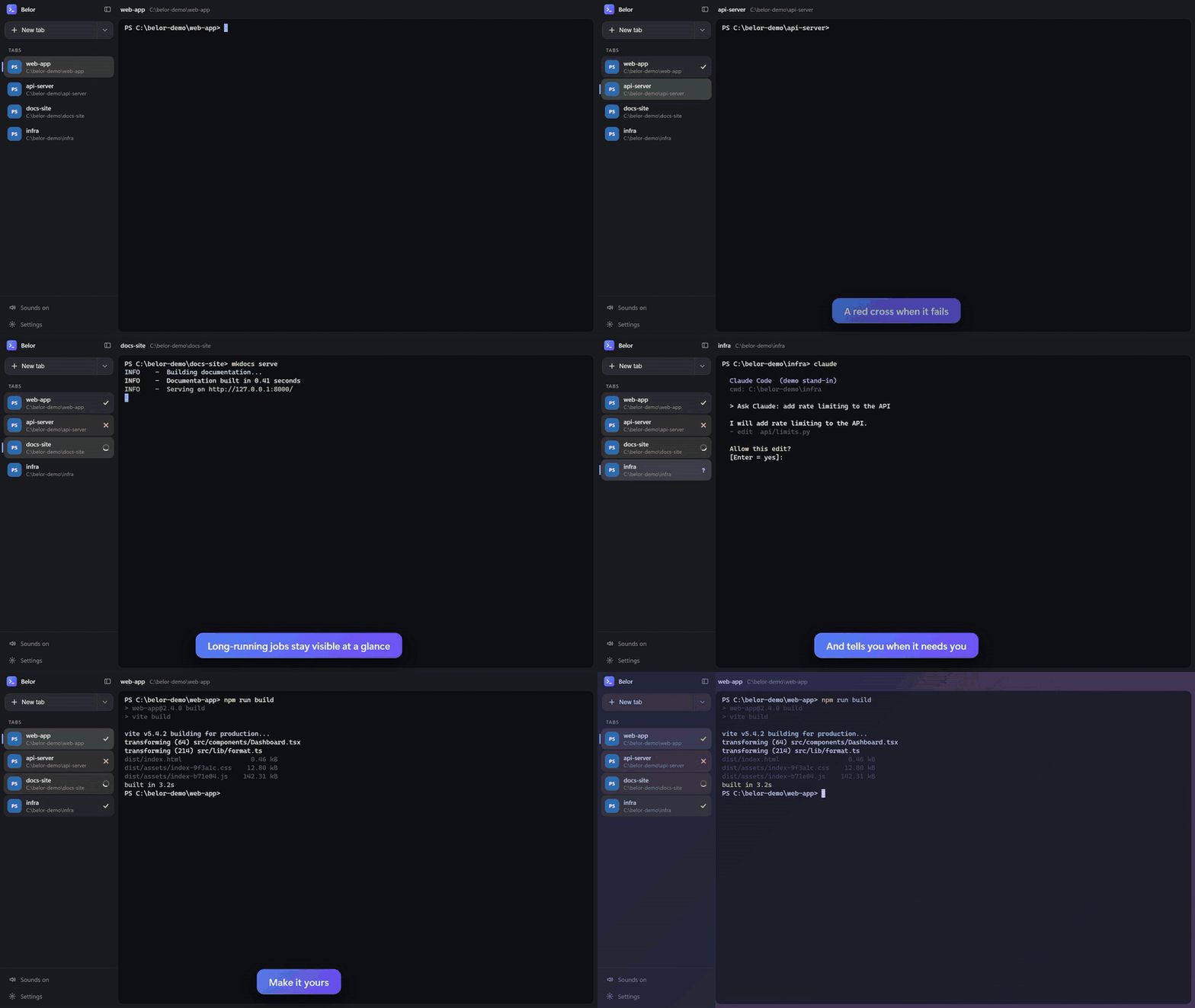
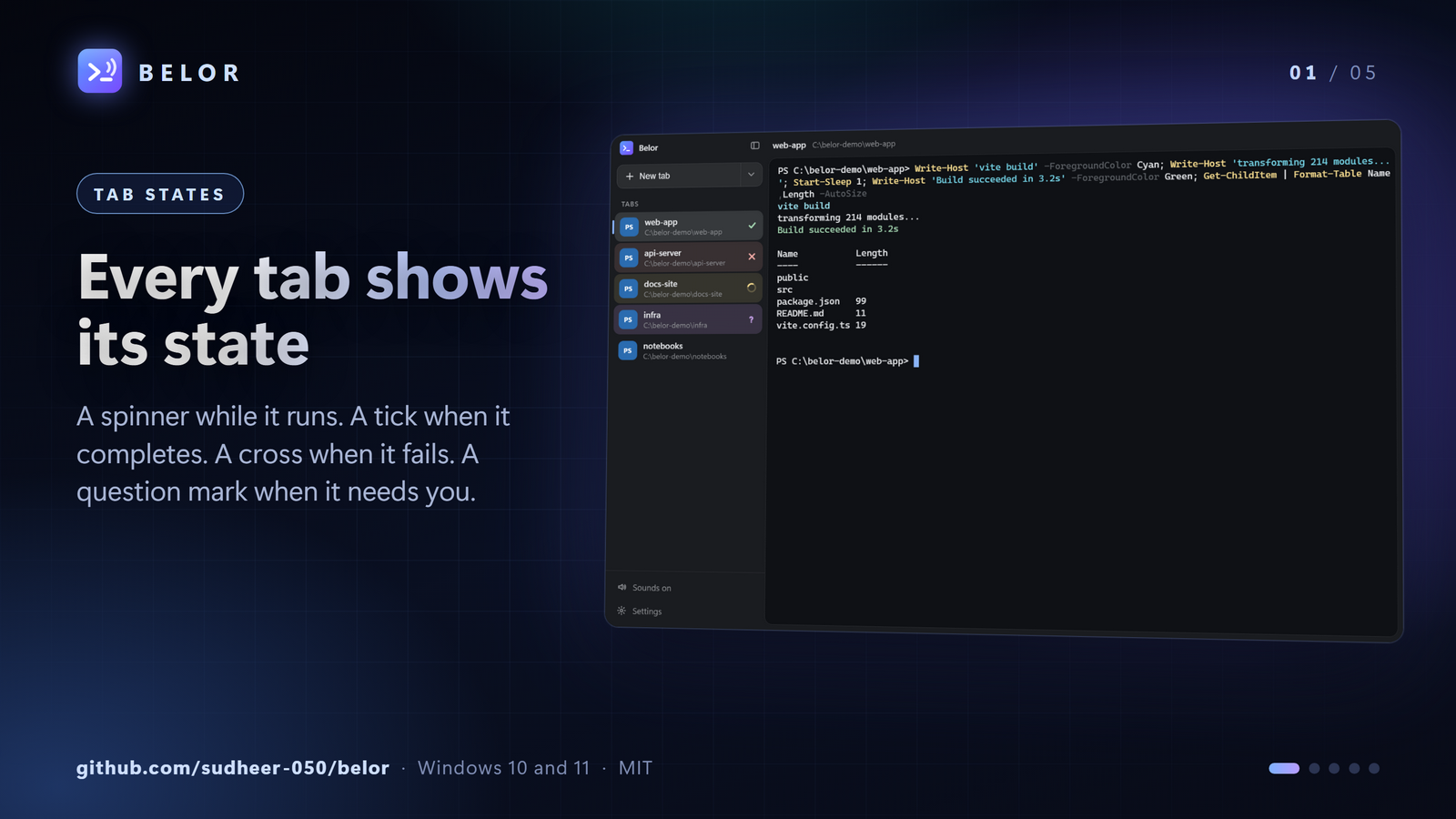
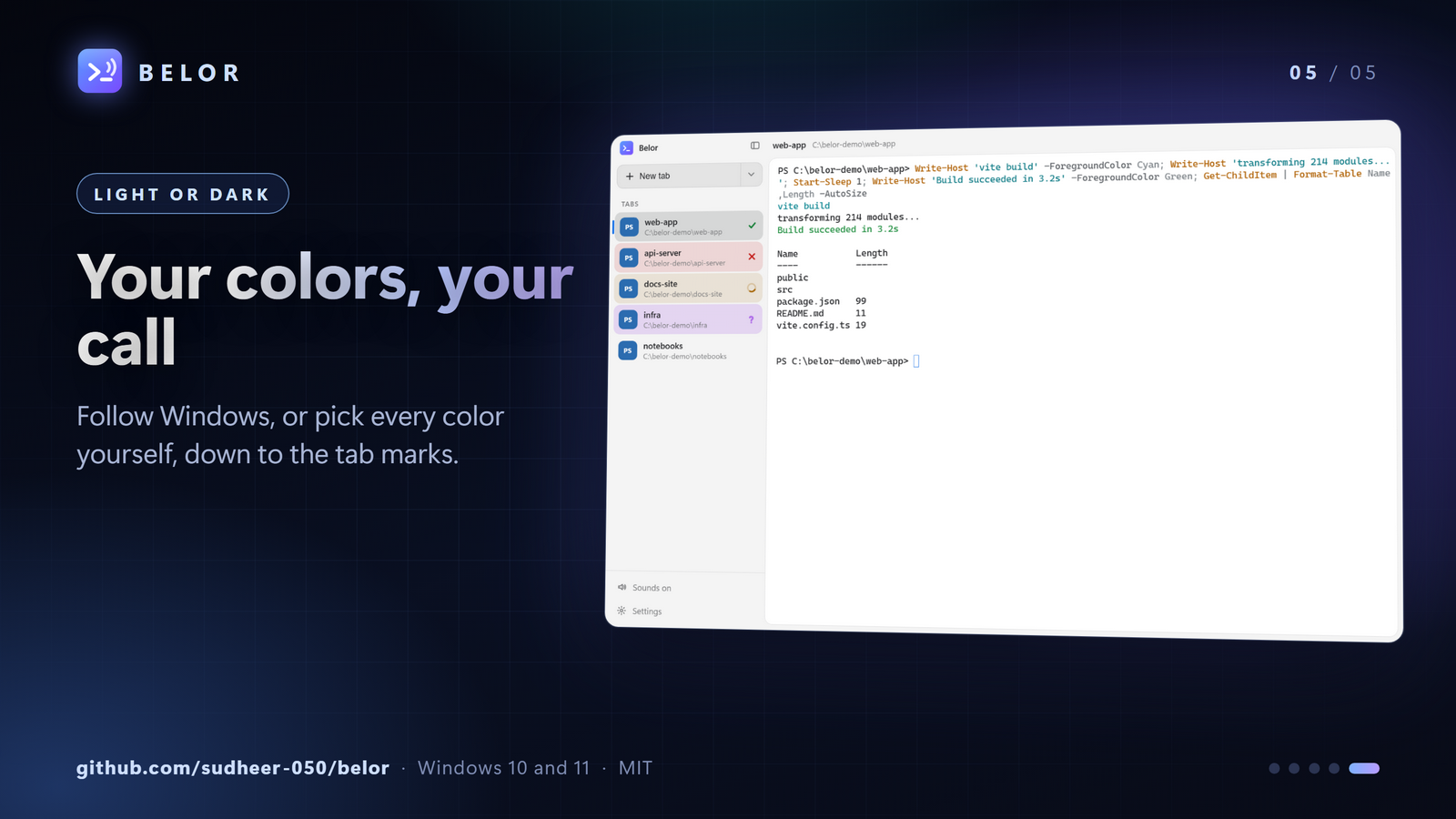
- Running, completed, failed, waiting for you, or nothing run yet, shown as a spinner, tick, cross or question mark with a matching tint.
- Claude Code and Codex aware
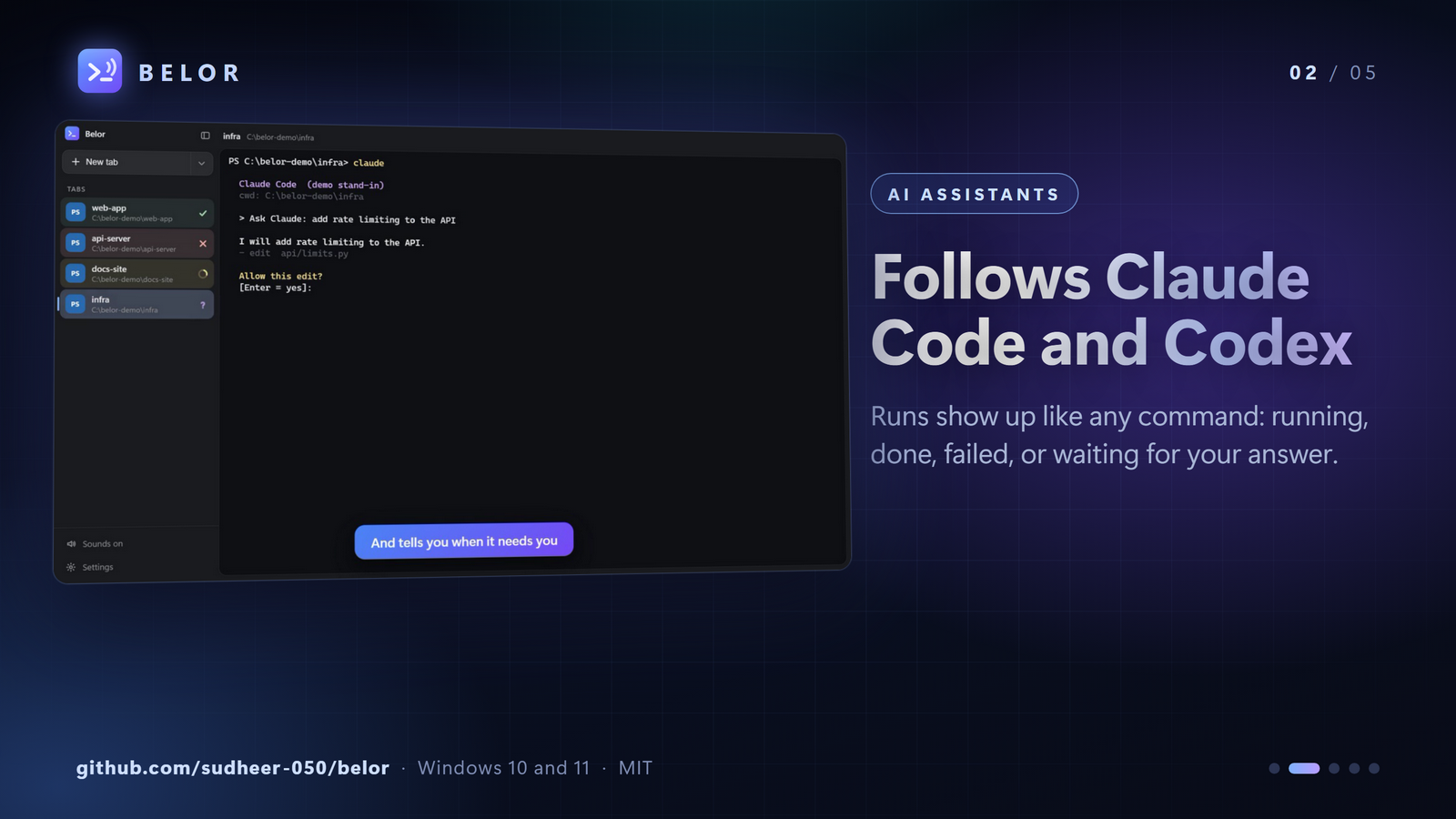
- Runs started in a tab appear like any command: running while the tool works, completed when it finishes, failed on an error, waiting when it asks a question or needs permission.
- Readable on every theme
- Auto contrast keeps all terminal text clearly readable on any theme or background, and the selected row of Claude Code's / menu gets a bright highlight so it stands out.
- Alerts you will notice
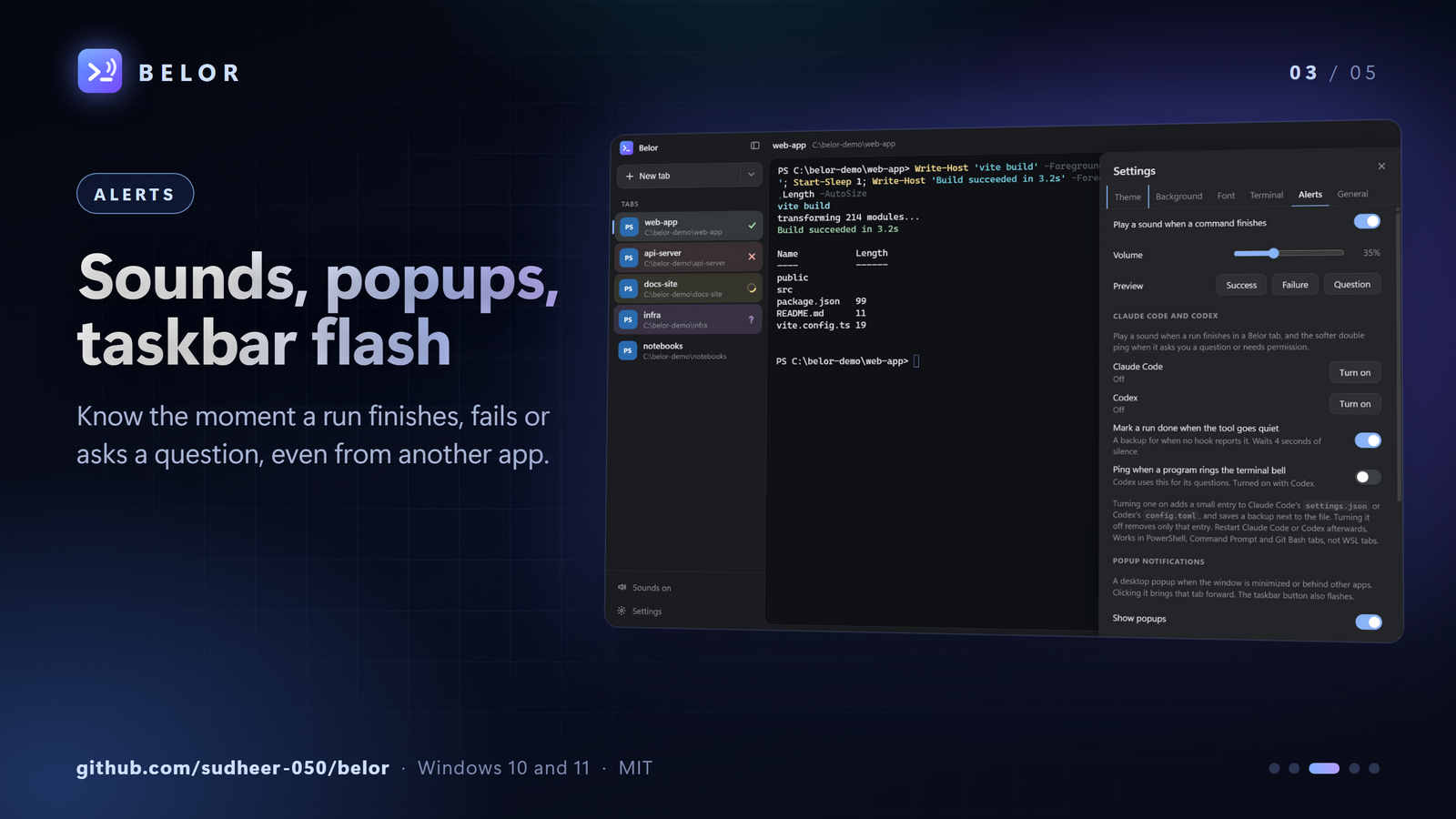
- Distinct sounds for success, failure and questions, and a desktop popup when the window is minimized or behind other apps. Clicking the popup opens that tab.
- Administrator tabs in the same window
- Open an elevated shell next to your normal tabs after one Windows approval prompt. Normal tabs stay non-elevated and admin tabs are clearly marked.
- Real shells
- PowerShell, PowerShell 7, Command Prompt, WSL and Git Bash run through the Windows pseudo-console, so full-screen programs, colors and links work.
- Make it yours
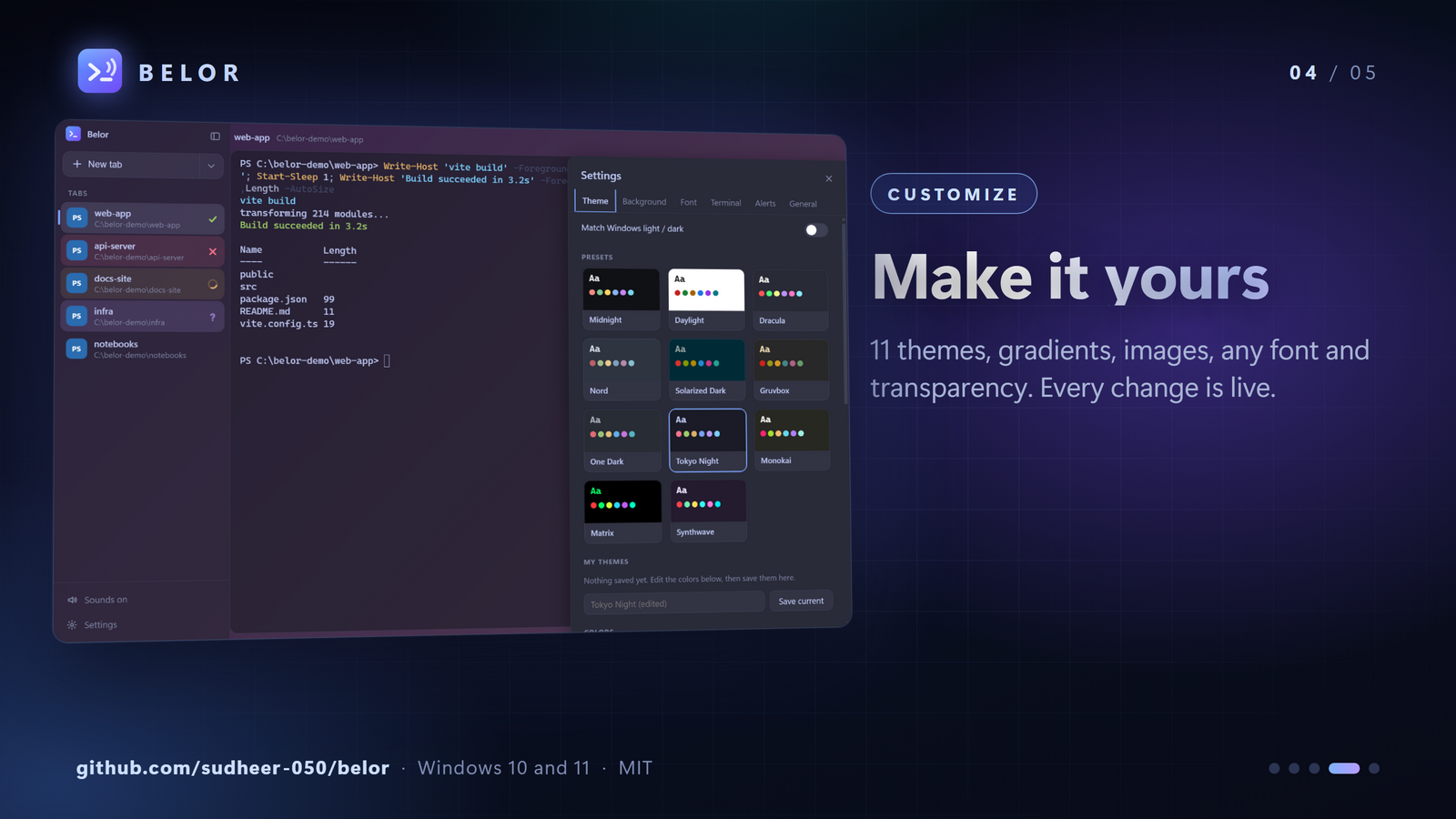
- Eleven theme presets or your own colors, gradient and image backgrounds, any installed font or your own font file, transparency, and everyday terminal settings.
- Find, zoom, reopen
- Search a tab's history, click links, zoom the text, and reopen your tabs the next time you start.
- Install Belor and open a tab. Pick a shell from the New menu, or press Ctrl+Shift+A for an administrator tab.
- Run your commands. Each tab's mark and tint show whether it is running, done or failed.
- In Settings, Alerts, turn on Claude Code and Codex so their runs report to the tab they started in.
- Work elsewhere. Sounds and popups tell you when a run finishes, fails or needs your input.
Architecture
An Electron desktop backed by a separate terminal host: xterm.js draws each terminal and node-pty hosts real Windows shells independently of the desktop window. The host saves transcripts and tab metadata and reconnects the desktop to surviving processes. A short prompt hook makes each shell report command results and the current folder. Claude Code and Codex report through small hooks to a private named pipe that only the app reads, checked with a one-time token. Administrator tabs run in a separate elevated helper that connects out to the app, never listens for connections, and chooses the shell program itself.
Privacy and limitations
Everything stays on your computer: the app's own code makes no network requests and sends no telemetry. Turning on Claude Code or Codex alerts edits their settings files, changing only Belor's own entries, saving a backup next to the file, and removing them again with one click. The installer is not code-signed, so Windows SmartScreen warns about an unknown publisher. Windows only. Popups work reliably for the installed app. Codex does not report failures, so Codex tabs never show failed. In Command Prompt tabs the success and failure marks are a best guess.
Status
0.7.10 Windows x64 release. It adds auto contrast and the menu highlight on top of 0.7.9; the 0.7.9 persistence, upgrade, conversation matching and popout checks were not re-run for this release. The installer is unsigned.
- Platform
- Windows 10 and 11 (x64)
- Version
- 0.7.10
- License
- MIT
- Built with
- Electron, xterm.js, node-pty
- Install size
- About 120 MB
Evidence
0.7.10 readability and menu highlight
0.7.10 · reviewed 2026-11-13
Auto contrast and the selected-menu highlight were checked by hand in the packaged app. Older evidence below describes earlier builds.
Source code and README
0.7.0 · reviewed 2026-11-11
The features and limits described on this page match the public repository at version 0.7.0.
Automated tests for the Claude Code and Codex settings changes
0.7.0 · reviewed 2026-11-11
Covers adding, updating and removing only Belor's entries, refusing unreadable files, keeping an existing Codex notify program, and upgrading from the earlier app name. Runs against temporary folders only.
Demo recording and how it was made
0.7.0 · reviewed 2026-11-11
The 52-second demo is a scripted run of the real app. Its AI assistant is a labeled stand-in that sends the same events Claude Code sends; no AI model was called.
Gallery
Questions
Will my conversations open automatically?
Yes, when Belor has a saved conversation ID or a uniquely matched saved Codex terminal title. After a desktop restart it reconnects to surviving processes. After a computer restart it resumes identified saved conversations; arbitrary shell jobs and variables cannot survive a reboot. Closing an individual tab still ends and removes it. Older tabs without a recoverable identity cannot be guessed.
Does it send my data anywhere?
No. The app's own code makes no network requests and has no telemetry. Links in the terminal open in your browser only when you click them.
Why does Windows warn about the installer?
The installer is not code-signed yet, so Windows shows an unknown publisher warning. The full source is public on GitHub.
Does it work with WSL?
WSL tabs work as terminals and show command status, but Claude Code and Codex alerts are not supported in WSL tabs yet.
Can I undo the Claude Code and Codex setup?
Yes. Turn them off in Settings, Alerts. Belor removes only its own entries and keeps a backup next to each file.